

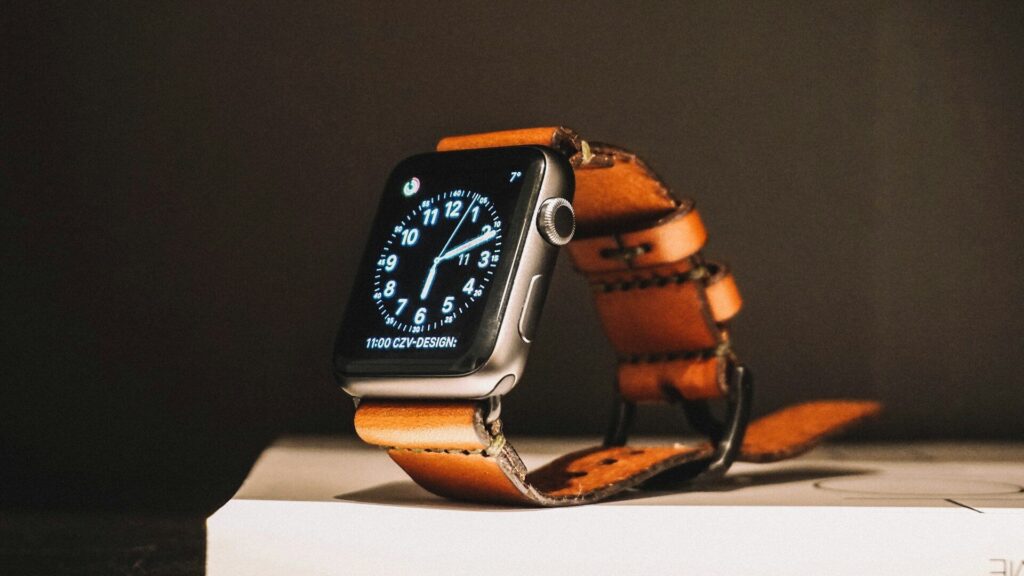
Setting up a cellular plan on an LTE smartwatch usually means adding the watch to your existing phone plan through the watch’s companion app, so the watch shares your phone number. You need a cellular model of the watch, a carrier that supports it and an account that allows add-on lines. The activation steps take a few minutes in the Watch app, Galaxy Wearable app, Pixel Watch app or your carrier’s app, and the plan appears as an extra line on your bill.
Before You Start
- Confirm the model: only cellular (LTE) versions of a watch can connect to a carrier.
- Check carrier support: not every carrier supports every watch brand.
- Check your plan: some prepaid and business plans do not allow watch add-ons.
- Update both devices: install the latest phone and watch software first.
- Charge the watch: activation can fail if the battery is low.
Not sure you need cellular at all? Read do you need a cellular smartwatch and cellular LTE smartwatches explained.
Activation Steps by Platform
| Platform | Where to Start | Typical Flow |
|---|---|---|
| Apple Watch | Watch app on iPhone, Cellular section | Set Up Cellular, sign in to carrier, confirm the add-on line |
| Samsung Galaxy Watch | Galaxy Wearable app, Mobile plans | Add mobile plan, follow carrier sign-in |
| Google Pixel Watch | Pixel Watch app, Mobile | Set up mobile, carrier page opens to finish |
| Other Wear OS or Garmin LTE models | Companion app or carrier app | Follow the brand’s carrier activation screens |
Step-by-Step Setup
- Pair the watch with your phone and finish the normal setup.
- Open the companion app and find the cellular or mobile plan section.
- Choose to add a plan. A carrier page or app opens.
- Sign in to your carrier account and accept the watch line.
- Wait for activation, which can take a few minutes.
- Restart the watch if the status does not update.
How to Confirm It Works
- Turn off Bluetooth and Wi-Fi on your phone, or leave the phone in another room.
- Check that the watch shows a cellular signal icon.
- Make a short call or send a message from the watch.
- Stream a song or open a map to check data.
If something fails, our guide to fixing a smartwatch that won’t pair covers the connection basics.
Battery and Usage Tips
Cellular use drains the battery faster than Bluetooth, especially with weak signal. The watch normally uses your phone connection when nearby and switches to cellular only when needed. Turn cellular off when you do not need it, and see smartwatch settings that improve battery life for more savings.
A few habits make cellular day to day smoother. Give the watch a clear name in the companion app so your carrier and you can tell lines apart on the bill. Check whether your carrier counts watch data against your shared allowance, since streaming music over LTE can use more than you expect. If you travel abroad, look up roaming rules for the watch line, because some carriers treat it differently from the phone line.
Final Thoughts
Most LTE watches activate in minutes once you know your carrier supports the model. Update both devices, follow the companion app’s cellular steps and confirm by leaving the phone behind for a quick call. Then you can run, walk or travel light without losing touch.
FAQs
Can my smartwatch have its own phone number?
Usually it shares your phone’s number. Some carriers offer separate numbers for kids’ watches.
Can I add a cellular plan to a non-LTE watch?
No. Only cellular models have the radio needed.
Why does my watch say activation failed?
Often the plan type or carrier support is the issue. Contact your carrier with the watch model.
Write Your Review
No reviews yet. Be the first to share your experience!