

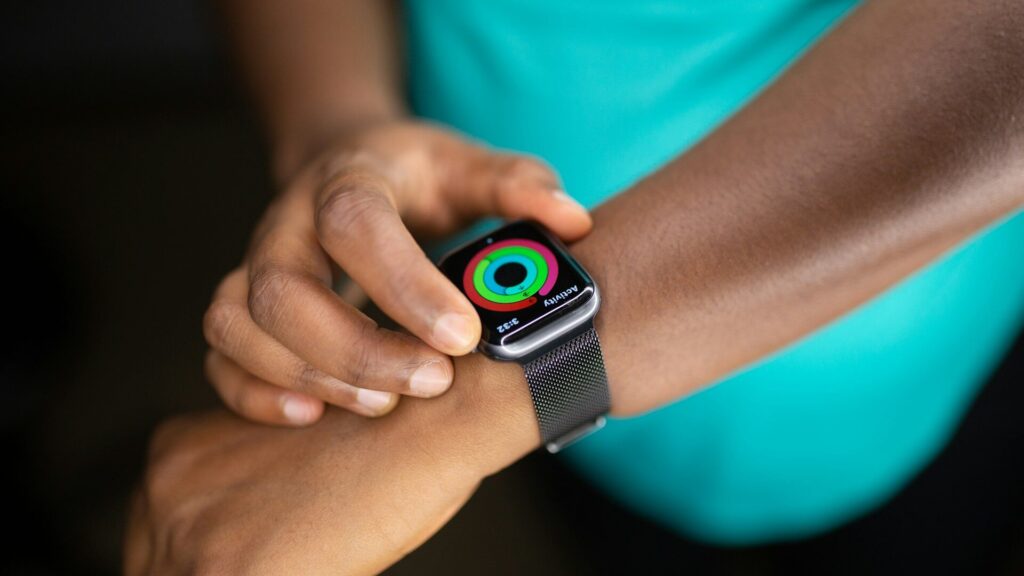
Open the Health app on a new iPhone and it looks nearly empty. Pair an Apple Watch, connect a Garmin or a smart ring app, and within a day it fills with steps, heart rate, sleep and workouts from several places at once. Understanding how Apple Health decides what to show is the key to trusting those numbers.
This guide explains what Apple Health does, which wearables can feed it, and the settings that keep your data clean and private.
What Apple Health Actually Does
Apple Health is a central database on your iPhone. It does not track much by itself beyond basic steps from the phone. Its job is to collect health data from apps and devices, store it securely, and let other apps read it with your permission.
- Summary: your pinned metrics and recent highlights.
- Browse: every category, such as Activity, Heart, Sleep, Respiratory and Body Measurements.
- Sharing: controls for sharing data with family members or your doctor.
Which Wearables Can Write to Apple Health
Apple Watch writes to Apple Health automatically. Other wearables connect through their own iPhone app, which you then allow to share data with Health.
The table below shows how common wearables connect and what they typically share.
| Wearable | How It Connects | Typical Data Shared |
|---|---|---|
| Apple Watch | Built in | Activity, heart, sleep, workouts, ECG |
| Garmin | Garmin Connect app | Steps, workouts, sleep, heart rate |
| Oura Ring | Oura app | Sleep, heart rate, workouts, temperature |
| Amazfit | Zepp app | Steps, workouts, sleep, heart rate |
| Fitbit | Not supported directly | Third-party sync apps only |
What each app shares can change with updates, so check the app’s Apple Health settings after you connect it.
How to Connect a Wearable App to Apple Health
Most apps ask for Health access during setup. If you skipped that step, you can turn it on later.
- Open the Health app and tap your profile picture in the top-right corner.
- Tap Apps under Privacy.
- Select the wearable app, such as Garmin Connect or Oura.
- Turn on the categories you want the app to write and read.
- Open the wearable app and sync once so new data flows in.
Data Sources and Duplicate Numbers
When two devices record the same thing, such as steps from your iPhone and your watch, Apple Health does not simply add them together. It uses a priority list to decide which source wins for each time period.
How to Set Source Priority
- In the Health app, open a category such as Steps.
- Scroll down and tap Data Sources & Access.
- Tap Edit and drag your most accurate device to the top.
Why Your Numbers Might Look Off
If step counts jump or sleep appears twice, two sources are usually competing. Putting your watch or ring above your phone fixes most of these cases. Our steps to miles calculator helps you sanity-check daily step totals.
Privacy and Sharing Controls
Health data stored on iPhone is encrypted, and apps can only read categories you approve. A few habits keep you in control:
- Review app permissions every few months and remove apps you no longer use.
- Use Sharing to give a family member or doctor view access to specific categories.
- Set up Medical ID so emergency responders can see key details from the lock screen.
- Back up Health data by keeping iCloud Health turned on, which also carries it to a new iPhone.
Useful Apple Health Features Most People Miss
Once your data flows in, Apple Health does more than store numbers. A few built-in tools turn it into a useful weekly check-in.
- Trends: the Summary tab highlights when a metric such as resting heart rate or walking steadiness moves up or down over weeks.
- Health Checklist: a single screen that shows which safety and heart features are turned on for your iPhone and Apple Watch.
- Vitals: on supported Apple Watch models, a nightly view that flags when overnight metrics fall outside your usual range.
- Activity rings history: tap Activity to see streaks and averages that are easy to miss on the watch.
- Health Records: in supported U.S. health systems, you can view lab results and immunizations alongside your wearable data.
Apple Health also stores active energy, which you can compare with your estimated daily burn from our TDEE calculator when planning meals or training.
When Apple Health Is Not the Right Hub
Apple Health lives only on iPhone. If you use an Android phone, or you plan to switch soon, a cross-platform app such as Garmin Connect or Zepp keeps your history portable. You can still export Apple Health data as a file from your profile screen before switching. Compare cross-platform options in our smart watches section.
Final Thoughts
Apple Health works best when you treat it as the single home for your data and set clear source priorities. Connect each wearable app once, decide which device is most accurate for each metric, and the dashboard becomes something you can actually rely on.
If you are still choosing a watch for your iPhone, compare models in our Apple Watch section, and see our other ecosystem guides for Android and cross-platform setups.
FAQs
Do I need an Apple Watch to use Apple Health?
No, Apple Health works with just an iPhone. The phone counts steps and distance, and many other wearables can add data through their own apps.
Can Garmin sync with Apple Health?
Yes, through the Garmin Connect app. Turn on Apple Health in Garmin Connect settings, then approve the categories in the Health app.
Why does Apple Health show more steps than my watch?
Your iPhone is probably ranked above your watch as a step source. Move the watch to the top of Data Sources & Access for Steps to fix it.
Is my Apple Health data private?
Yes, it is encrypted and shared only with apps you approve. You can review or revoke each app’s access at any time in the Health app.



Write Your Review
No reviews yet. Be the first to share your experience!