

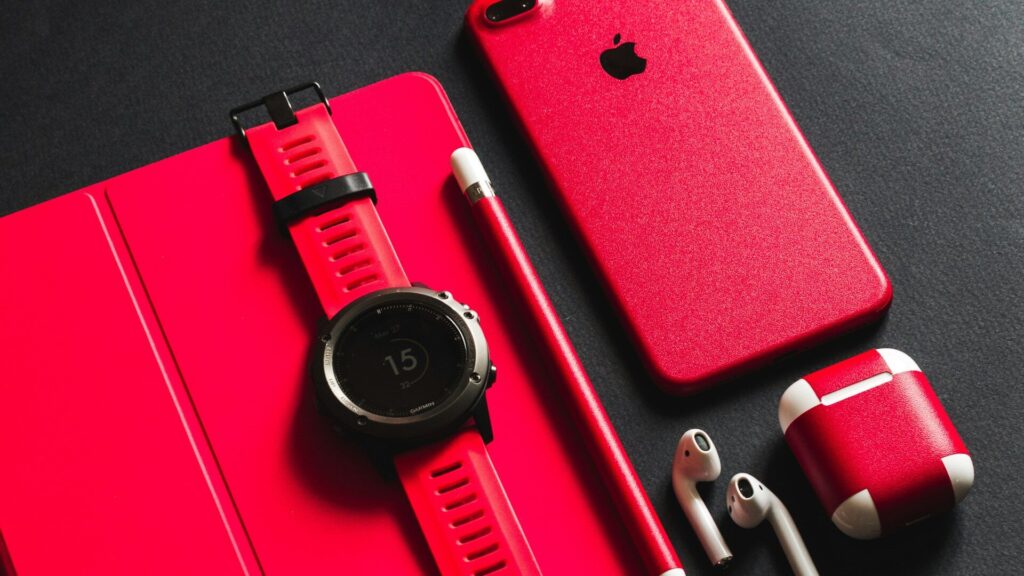
You finish a run, open Garmin Connect, and the activity is not there. A Garmin watch not syncing is rarely a broken watch: it has usually saved everything correctly. The data is simply stuck because of a Bluetooth hiccup, a phone setting or the app itself.
Start with the quick fixes and move down the list.
Common Causes at a Glance
Match the symptom with the most likely cause.
| Symptom | Likely Cause | First Fix |
|---|---|---|
| Sync spins and never finishes | Bluetooth glitch | Restart watch and phone |
| Syncs only when the app is open | Phone battery limits | Allow background activity |
| Watch shows as disconnected | Paired in phone settings | Remove and re-add through the app |
| One activity will not upload | Large or corrupt file | Sync by USB with Garmin Express |
| Nothing syncs for anyone | Garmin service issue | Wait and retry later |
Quick Fixes to Try First
- Open Garmin Connect, pull down on the main screen to start a manual sync, and keep the app open until it finishes.
- Make sure Bluetooth is on and Airplane Mode is off on the phone.
- Restart the phone.
- Restart the watch. On many models, hold the light button until the watch turns off, then turn it back on.
- Update Garmin Connect and the watch software.
Check Phone Settings
Android
Open the phone’s app settings for Garmin Connect, choose Battery and set it to Unrestricted. Allow nearby devices and location permissions.
iPhone
In Settings, open Garmin Connect and turn on Bluetooth and Background App Refresh. Low Power Mode can delay background syncing.
Quick answer: most repeated sync failures come from the phone limiting Garmin Connect in the background.
Re-pair the Watch the Right Way
Garmin watches should be paired only through the Garmin Connect app, not from the phone’s Bluetooth menu.
- In Garmin Connect, open the device settings and remove the watch.
- In the phone’s Bluetooth settings, forget the watch if it appears there.
- On the watch, remove the phone from its paired phone list in settings.
- Add the watch again in Garmin Connect using Add Device.
Removing a device from the app does not delete activities already synced to your account.
Sync With a Computer as a Backup
If one activity refuses to upload, connect the watch to a computer with its charging cable and use Garmin Express to sync. This often clears stubborn files.
Final Thoughts
If you find your Garmin watch not syncing, try a manual sync and restarts first, then let Garmin Connect run in the background. If that fails, re-pair through the app, and use Garmin Express by USB for stubborn activities.
For setup tips, see our Garmin watch setup guide and the pairing fixes guide. Compare models in our Forerunner 265 review or browse more troubleshooting guides.
FAQs
Why is my Garmin not syncing automatically?
The phone is usually limiting Garmin Connect in the background. Allow background activity and unrestricted battery use for the app.
Will I lose activities if my Garmin will not sync?
Usually not, since the watch stores them until they upload. Avoid resetting the watch before activities sync.
Should I pair my Garmin in Bluetooth settings?
No, pair it through the Garmin Connect app only. Pairing in phone settings can cause sync failures.
Can I sync a Garmin without a phone?
Yes, with Garmin Express on a computer. Many models can also sync over Wi-Fi.


Write Your Review
No reviews yet. Be the first to share your experience!