

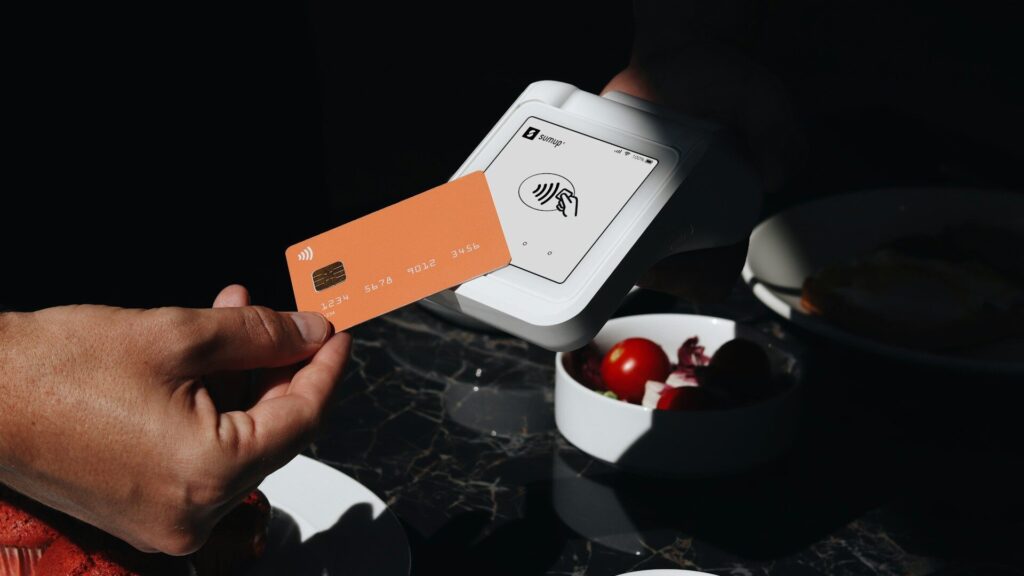
When contactless payments are not working on your watch, check that wrist detection and the watch passcode are on, the card is active in the watch wallet, you are using the right gesture or button to bring up the wallet, and you hold the watch face close to the terminal for a couple of seconds. If problems continue, restart the watch, update the wallet app and re-add the card.
Quick Checks at the Register
- Open the wallet with the correct button or gesture before tapping.
- Hold the watch face flat near the reader, not the side of your wrist.
- Wait for the confirmation vibration or tone.
- If declined, try a different card in the wallet or pay another way and troubleshoot later.
Common Causes and Fixes
| Cause | Fix |
|---|---|
| Watch locked or off wrist | Turn on wrist detection, unlock with passcode |
| Card suspended or expired | Check with the bank, update card details |
| Card not supported on watch | Confirm your bank supports that watch wallet |
| Wallet app outdated | Update the wallet and companion apps |
| Terminal issue | Try another register or pay with a phone |
| Software glitch | Restart the watch and phone, re-add the card |
Security Settings That Matter
Watch wallets require a passcode and wrist detection for security. If you take the watch off, it locks and needs the passcode again. If you turned off wrist detection, payments may be disabled. Re-enable it in the watch’s security settings. Our setup guide how to set up contactless payments walks through the full process.
Bank and Card Issues
Not every bank supports every watch wallet. Check your bank’s list for Apple Pay, Google Wallet, Samsung Wallet, Garmin Pay or Zepp Pay. If the card was replaced, the wallet may still hold the old number; remove it and add the new one. Some banks require an extra verification step by text or app before the card works. Compare wallets in Apple Pay, Google Wallet, Samsung Wallet and Garmin Pay.
Re-Adding the Card
- Remove the card from the watch wallet.
- Restart the watch and phone.
- Add the card again through the companion app.
- Complete any bank verification.
- Make a small purchase to confirm it works.
Payments After a Reset or New Phone
After a watch reset or switching to a new phone, payment cards are removed for security and must be added again. If you recently changed phones, check our guide on switching phones with a smartwatch, since some wallets do not move between platforms. For how tap-to-pay works under the hood, read NFC contactless payments on wearables.
Final Thoughts
Most watch payment failures come from a locked watch, a card that needs updating or holding the watch wrong at the terminal. Check security settings, confirm the card, restart and re-add it if needed.
FAQs
Why does my watch say payment not completed?
The terminal may not have read it in time. Hold the face closer for a few seconds.
Do watch payments work without my phone nearby?
Yes, once the card is added. The watch handles the tap on its own.
Why did my card disappear from the watch?
A reset, passcode change or long time off the wrist can remove it.
Write Your Review
No reviews yet. Be the first to share your experience!