

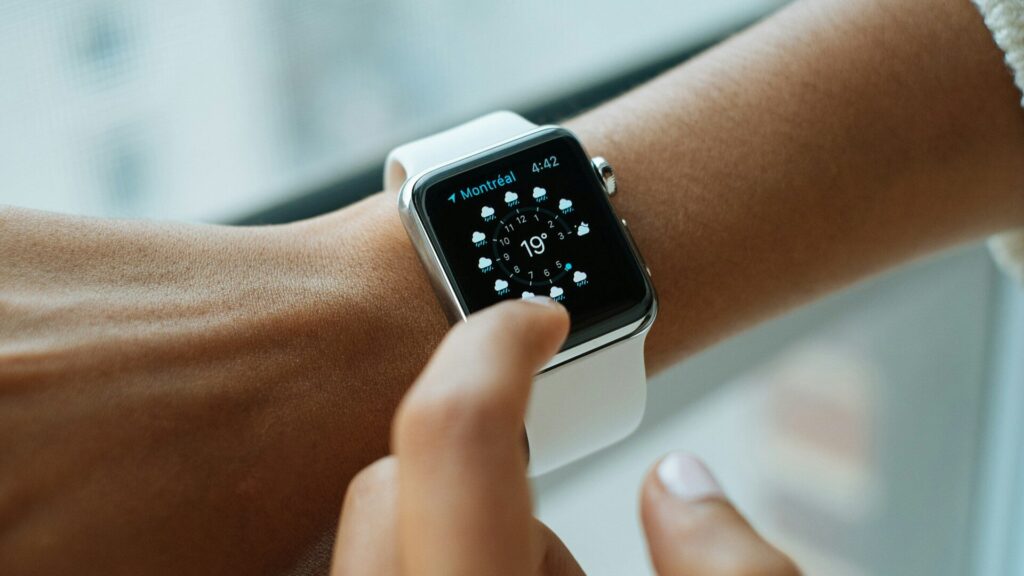
Many Apple Watch owners only use the watch face, notifications and workouts, but several built-in Apple Watch apps quietly solve everyday problems. Noise warns you about loud places, Compass helps with directions and backtracking, Camera Remote turns your wrist into a shutter button, Walkie-Talkie gives quick voice chats and Find Devices helps track down a lost iPhone. App names and features can vary by watchOS version and model.
Hidden Helpers Worth Trying
| App | What It Does | Handy For |
|---|---|---|
| Noise | Measures surrounding sound levels and alerts you when it is loud | Concerts, workshops, busy streets |
| Compass | Shows heading, elevation on many models and waypoints | Hikes and unfamiliar cities |
| Camera Remote | Live preview and shutter for your iPhone camera | Group photos and tripod shots |
| Walkie-Talkie | Push-to-talk voice chat with other Apple Watch users | Family in a big store or house |
| Find Devices | Locates your other Apple devices | A misplaced iPhone or tablet |
| Mindfulness | Short guided breathing and reflection sessions | A calm pause between meetings |
Everyday Tools You May Have Missed
- Timers and Stopwatch: run several timers at once while cooking.
- Calculator: split a bill or work out a tip right at the table.
- Flashlight: swipe to Control Center and tap the flashlight for a quick light.
- Medications: set reminders and log doses if you take regular medicine.
- Sleep: set a schedule and wind-down. See sleep mode and bedtime schedules.
Health and Safety Features
Some of the most important tools are not apps you open every day but settings you turn on once. Emergency SOS, Medical ID and fall detection can make a real difference. Our guides on setting up emergency SOS and Medical ID and fall detection explained walk through them.
How to Make Them Easy to Reach
- Add your favorites as complications on your watch face.
- Rearrange the app grid or list in the Watch app on iPhone.
- Use Siri to open apps by name.
- Put the most-used ones in the Dock or Smart Stack, depending on your watchOS version.
Our guide to customizing watch faces and complications shows how, and Apple Health explained covers where your data ends up.
Remove What You Do Not Need
If the app list feels cluttered, remove third-party apps you never use and hide notifications from apps that do not need your wrist. A cleaner watch is faster to navigate. See how to manage notifications.
A good way to explore is to pick one new app each week and use it for a few days. Try Noise at a concert or a busy restaurant, use Compass on a weekend walk, or let Camera Remote take the next family photo. If an app turns out to be useful, add it to a complication or the Dock so it stays in easy reach. If not, move it to the end of the list.
Final Thoughts
Your Apple Watch already includes tools for loud places, lost phones, group photos and calm breaks. Spend ten minutes exploring the app list, add a few to your watch face and you may find your watch more useful than ever.
FAQs
How do I see all apps on my Apple Watch?
Press the Digital Crown to open the app list or grid. Scroll to browse every app.
Does Walkie-Talkie need a phone nearby?
It needs a connection through iPhone, Wi-Fi or cellular. Both people need an Apple Watch.
Can I delete built-in Apple Watch apps?
Some can be removed, others cannot. Check in the Watch app on iPhone.


Write Your Review
No reviews yet. Be the first to share your experience!