

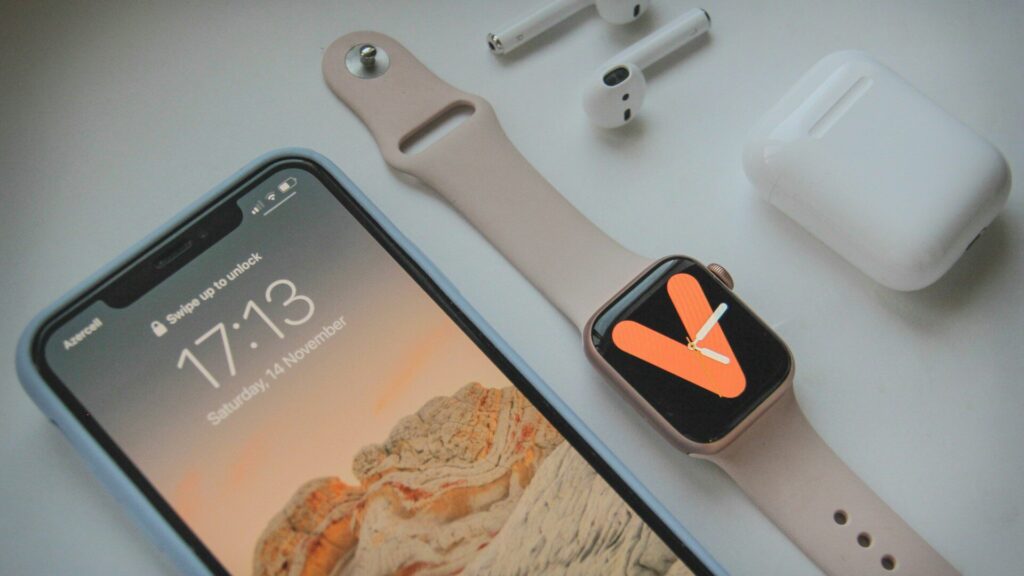
Your rings look full on the watch but empty on your iPhone, or a workout never shows up in the Fitness app. When an Apple Watch is not syncing, the watch is usually fine. The problem sits in the connection, the software versions, or the sync data that keeps both devices aligned.
Work through these fixes in order, from quickest to most thorough.
Check the Connection First
- Swipe up on the watch (or press the side button) to open Control Center and look for a red iPhone icon, which means it is disconnected.
- On iPhone, make sure Bluetooth and Wi-Fi are on in Settings, not just in Control Center.
- Turn off Airplane Mode on both devices.
- Keep the iPhone within about 30 feet of the watch.
Common Sync Problems and Fixes
Match the symptom to the most likely fix.
| Symptom | Likely Cause | First Fix |
|---|---|---|
| Activity rings out of date | Bluetooth paused | Restart both devices |
| Workouts missing in Fitness | Health permissions | Check Health data sources |
| Apps will not install | Low storage or old watchOS | Update and free space |
| Contacts or calendar wrong | Corrupted sync data | Reset sync data |
| Nothing syncs at all | Broken pairing | Unpair and re-pair |
Restart and Update Both Devices
- Restart the watch by holding the side button and choosing the power icon.
- Restart your iPhone.
- Update iOS in Settings, General, Software Update.
- Update watchOS in the Watch app under General, Software Update, with the watch on its charger.
Reset Sync Data
If contacts, calendars or settings look wrong, resetting sync data rebuilds them without erasing the watch.
- Open the Watch app on iPhone.
- Go to General, then Reset.
- Tap Reset Sync Data and wait for it to finish.
Then open the Health app and check Data Sources & Access to make sure the watch is allowed to write workouts and activity. Our Apple Health guide explains source priority in detail.
Unpair and Re-pair as a Last Resort
If nothing syncs, unpairing creates a backup on your iPhone, which you can restore when pairing again.
- In the Watch app, tap All Watches, then the info button next to your watch.
- Tap Unpair Apple Watch and confirm.
- Pair the watch again and choose Restore from Backup.
Our step-by-step guide to setting up an Apple Watch covers the pairing screens.
Final Thoughts
When an Apple Watch is not syncing, start with the connection and software updates, then reset sync data, and only unpair as a last step. Most people never need to go beyond a restart and an update.
If problems keep coming back, check our other troubleshooting guides, or see how newer models compare in the Apple Watch section.
FAQs
Why is my Apple Watch not syncing activity?
Usually Bluetooth paused or the Health permissions changed. Restart both devices and check that the watch is allowed in Health data sources.
Does resetting sync data delete my health data?
No, it rebuilds contacts, calendars and settings only. Your health data stays in the Health app on iPhone.
Will unpairing erase my Apple Watch?
Yes, but it creates a backup first. Choose Restore from Backup when you pair again to bring your settings back.
How long does Apple Watch sync take?
Usually seconds to a few minutes. Large updates or a fresh pairing can take longer, so keep both devices charged.



Write Your Review
No reviews yet. Be the first to share your experience!