

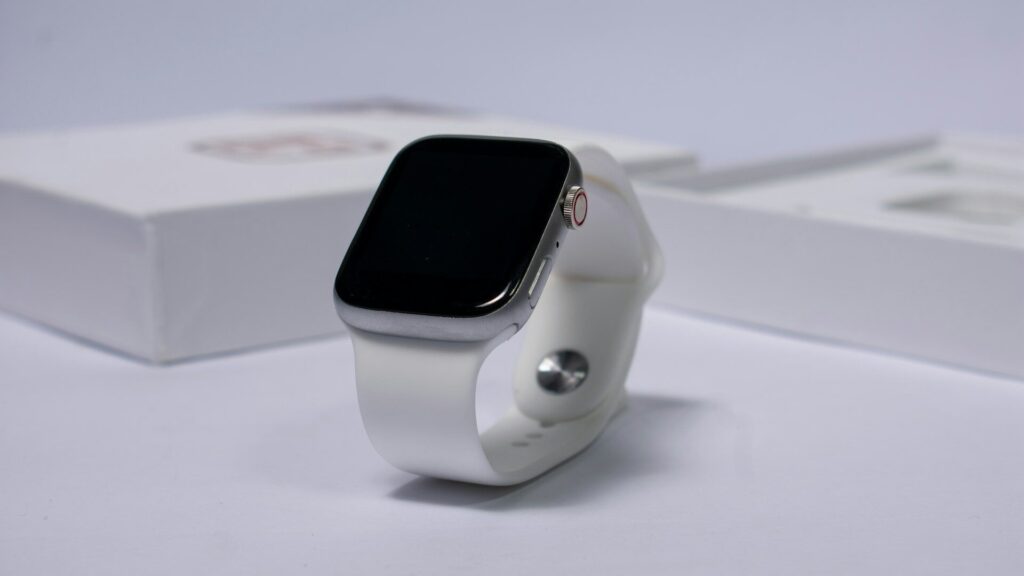
The pairing screen on a new Apple Watch looks simple, but the choices you make in the next ten minutes decide how useful the watch feels for months. Set up Apple Watch carefully once, and you avoid chasing missing notifications, empty sleep data and a battery that fades by evening.
Keep your iPhone nearby, connected to Wi-Fi, with Bluetooth on and the latest iOS installed.
Before You Start: What You Need
A quick check prevents most pairing problems.
- An iPhone that supports the watch’s version of watchOS (check Apple’s compatibility list for your model).
- The latest iOS update installed on your iPhone.
- Both devices charged to at least 50%.
- Your Apple Account password, needed for Activation Lock.
- For cellular models, your carrier account details.
Pairing Apple Watch with Your iPhone
Follow these steps in order. The whole process usually takes 10 to 20 minutes, most of it spent on the automatic update.
- Put the watch on and hold the side button until the Apple logo appears.
- Bring your iPhone close. When the pairing prompt appears, tap Continue.
- Hold the iPhone so the watch face sits inside the viewfinder until pairing completes.
- Choose Set Up for Myself (or Set Up for a Family Member if you are configuring a child’s watch).
- Pick the wrist you wear it on and agree to the terms.
- Sign in with your Apple Account when asked.
- Create a passcode. A passcode is required for Apple Pay.
- Let the watch install any watchOS update. Keep both devices on their chargers during this step.
Settings to Choose During Setup
The setup flow asks several questions. Here is what we recommend for most people.
| Setup Option | Our Recommendation | Why It Matters |
|---|---|---|
| Text Size and Bold | Increase one step | Easier reading at a glance |
| Share Settings | Continue | Copies iPhone privacy choices |
| Health Details | Fill in accurately | Improves calorie and fitness estimates |
| Fall Detection | Turn on | Can call for help after a hard fall |
| Heart Notifications | Turn on | Alerts for unusual heart rate or rhythm |
| Apple Pay | Add a card | Tap to pay without your phone |
| Install Available Apps | Choose Later | Avoids clutter on a small screen |
Turn On the Health Features That Matter
Some of the most valuable features are off by default or need a quick setup in the Health app on iPhone.
Sleep Tracking
Open the Health app, tap Sleep, and set a sleep schedule. Wear the watch to bed and charge it in the morning. Our sleep calculator can help you pick a bedtime.
Heart Health
Set up the ECG app and irregular rhythm notifications in the Health app under Heart, if your model supports them.
Emergency Features
Fill in Medical ID and add emergency contacts so Emergency SOS and fall detection can reach the right people.
First Tweaks for Better Battery and Fewer Buzzes
A new watch mirrors every iPhone notification, which drains the battery and your patience.
- In the Watch app on iPhone, open Notifications and turn off mirroring for apps you do not need on your wrist.
- Remove watch faces you will not use and keep one or two with helpful complications.
- Use Low Power Mode on long days or trips.
- Set your activity goals to realistic numbers so rings feel motivating, not impossible.
If you train with heart rate, our heart rate zone calculator shows the zones your watch will display during workouts.
Apps and Watch Faces Worth Adding First
A small screen rewards restraint. Start with a handful of apps and faces that match your day, then add more only when you miss something.
- Workout and Fitness: built in, and the fastest way to start tracking runs, walks and strength sessions.
- Sleep: built in, and it works with the Sleep schedule you set in the Health app.
- Wallet: for Apple Pay and transit cards.
- Your music or podcast app: download a playlist for phone-free workouts.
- A clean watch face: choose one with complications for weather, activity rings and your next calendar event.
To add a face, open the Watch app on your iPhone, tap Face Gallery, choose a face, and tap Add.
If Setup Gets Stuck
Setup occasionally stalls on the update or pairing screen. Most of the time, one of these steps gets it moving again:
- Keep both devices on their chargers and on the same Wi-Fi network.
- Restart your iPhone and the watch, then start pairing again.
- Make sure Bluetooth and Wi-Fi are switched on in Settings, not just toggled in Control Center.
- If the watch was used before, erase it and remove it from the previous owner’s Apple Account.
For more fixes, see our guide in the troubleshooting section. If you have not picked a model yet, compare options in the Apple Watch lineup.
Final Thoughts
Setting up an Apple Watch is quick, but the choices around health details, notifications and safety features shape the whole experience. Take the extra five minutes to fill in your health profile, turn on fall detection and trim notifications.
After a week, revisit the Watch app and adjust anything that feels noisy. For more ideas, browse our setup and tips guides.
FAQs
Can I set up an Apple Watch without an iPhone?
Not for your own use, you need an iPhone to pair it. Family Setup lets a parent’s iPhone manage a watch for a child who does not have an iPhone.
How long does Apple Watch setup take?
Usually 10 to 20 minutes. Most of the time goes to the watchOS update, so keep both devices charged and on Wi-Fi.
Why is my Apple Watch not pairing?
Most pairing failures come from Bluetooth being off or an outdated iOS. Update your iPhone, restart both devices, and keep them close together while pairing.
Should I turn on fall detection?
Yes, especially for anyone who exercises alone or is over 55. The watch can call emergency services if you stay still after a hard fall.



Write Your Review
No reviews yet. Be the first to share your experience!