

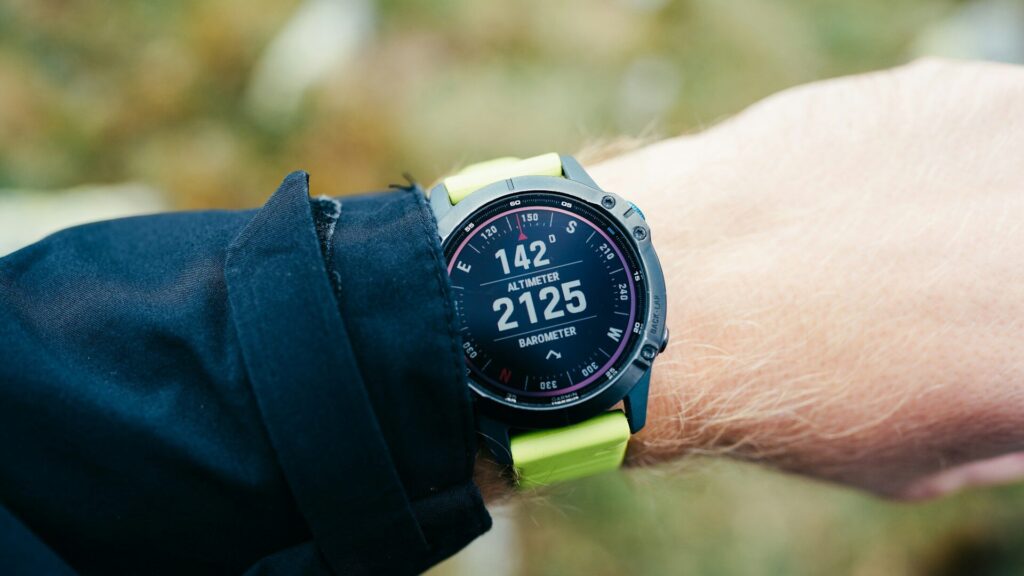
Garmin watches are packed with training features, but many of them depend on information you give the watch on day one. A careful Garmin watch setup means accurate calories, sensible heart rate zones and battery life that matches what the box promised.
Pair the Watch With Garmin Connect
- Install the Garmin Connect app on your iPhone or Android phone and create a Garmin account.
- Turn on the watch and choose your language.
- In the app, tap Add Device and select your model.
- Confirm the pairing code and allow notifications, location and Bluetooth access.
- Keep the watch near the phone while it installs software updates.
If pairing stalls, our guide on what to do when a smartwatch won’t pair covers the common fixes.
Fill In Your User Profile
Garmin uses your profile for calories, training load and recovery estimates. In Garmin Connect, open your profile settings and enter accurate height, weight, birth year, sex and activity level. Choose the wrist you wear the watch on, since it affects gesture and sensor settings.
Settings to Change Right Away
The table below lists first-day settings and why they matter.
| Setting | Where to Find It | Why Change It |
|---|---|---|
| Heart rate zones | Profile, Heart Rate Zones | Default zones may not match your fitness |
| Sleep window | Profile, Sleep Schedule | Mutes alerts and improves sleep data |
| Notifications | Device settings, Notifications | Fewer buzzes and better battery |
| GPS mode | Activity settings, Satellites | Balance accuracy and battery |
| Garmin Pay | Device settings, Garmin Pay | Tap to pay on supported models |
| Safety features | Device settings, Safety and Tracking | Incident detection and LiveTrack |
Set Heart Rate Zones and GPS
Heart Rate Zones
Garmin can base zones on maximum heart rate, heart rate reserve or lactate threshold. If you know your resting and maximum heart rate, enter them. Our heart rate zone calculator gives you a starting point.
GPS Mode
Newer Garmin models offer automatic SatIQ, which switches to multi-band only when the signal is difficult. It is a good default for most runners. Our dual-band GPS guide explains when the extra accuracy helps.
Customize the Watch for Daily Use
- Glances or widgets: keep the five you check most, such as Body Battery, sleep and weather.
- Watch face: choose one that shows the stats you care about.
- Activities: remove sports you never do so the start menu is shorter.
- Backlight: shorten the timeout or lower brightness to save battery.
Final Thoughts
A good Garmin watch setup takes about 20 minutes: pair with Garmin Connect, fill in your profile, set heart rate zones, then trim notifications and widgets. Those choices shape every training and recovery number you will see.
See which Garmin fits your routine in our Forerunner 165 review and Venu 4 review.
FAQs
Does a Garmin watch work with iPhone?
Yes, Garmin watches work with both iPhone and Android. Quick replies to texts are limited to Android phones.
Why are my Garmin calories wrong?
An incomplete profile is the usual cause. Update height, weight, age and activity level in Garmin Connect.
Should I use multi-band GPS all the time?
No, it uses more battery. SatIQ or standard GPS suits most everyday runs.
How do I set my sleep schedule?
Open Garmin Connect, then your profile’s sleep settings. The watch uses it to mute alerts and track sleep.


Write Your Review
No reviews yet. Be the first to share your experience!