

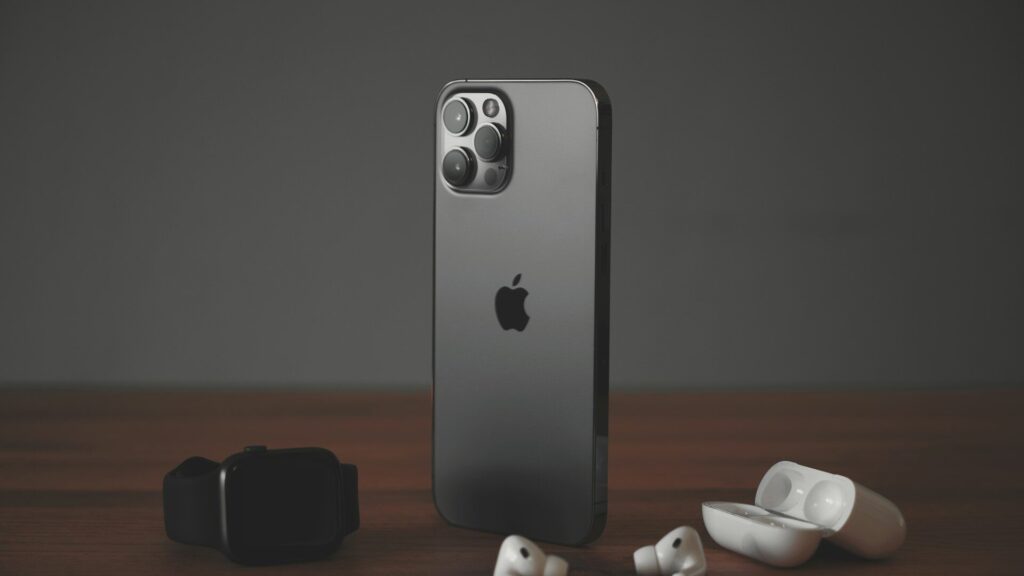
Changing phones is stressful enough without losing months of sleep and workout history. If you plan to move from Android to iPhone, your smartwatch decides how smooth the switch will be. Some watches pair with both platforms and carry your data along. Others only work with Android, so you will need a new watch and a plan for your old data.
Will Your Watch Work With iPhone?
| Watch | Works With iPhone? | Your History |
|---|---|---|
| Garmin | Yes | Stays in your Garmin account |
| Amazfit | Yes | Stays in your Zepp account |
| Fitbit trackers | Yes, most models | Stays in your Fitbit or Google account |
| Smart rings such as Oura or RingConn | Yes | Stays in the brand account |
| Galaxy Watch on Wear OS | No | Stays in Samsung Health on Android |
| Pixel Watch | No | Stays in your Fitbit account |
Our guide to choosing a smartwatch that works with your phone explains why Wear OS watches stay with Android.
If Your Watch Works on Both Phones
- Sync the watch one last time on your Android phone.
- Install the brand app on the iPhone and sign in with the same account.
- Unpair the watch from the old phone inside the app, then pair it with the iPhone.
- Allow notifications and, if you like, the Apple Health connection.
Your history lives in the brand’s cloud account, so it reappears on the new phone. Garmin users can follow our Garmin sync fixes if the first sync stalls.
If You Are Moving to Apple Watch
Apple Watch only works with iPhone, and Apple Health does not import Android health history automatically. You have three practical options:
- Keep your old data in the original app, which you can still open on the web or an old phone.
- Export your history as a file before you switch, so you have a personal copy.
- Use a third-party transfer app that reads exports and writes them into Apple Health, if you want one combined timeline.
Once your new watch is ready, our Apple Watch setup guide walks through the first steps, and our Apple Health explainer shows where everything lands.
What Changes Day to Day
Even with the same watch, a few things may feel different on iPhone. Quick text replies are limited for most non-Apple watches, notification settings move into the iPhone’s own menus, and some Android-only apps on the watch stop working. Health data can now flow into Apple Health instead of Health Connect.
A Simple Switch Checklist
- Sync and back up every wearable before you reset the old phone.
- Write down your watch app logins and two-step verification method.
- Remove payment cards from the old pairing and add them again on the new one.
- Keep the old phone for a week in case something did not move.
Final Thoughts
If your watch is from Garmin, Amazfit, Fitbit or a ring brand, switching to iPhone mostly means signing in again. If you wear a Galaxy Watch or Pixel Watch, plan for a new watch and export your history first. A little preparation keeps your health timeline intact.
FAQs
Can I use my Galaxy Watch with an iPhone?
Not current Wear OS models. Galaxy Watch models on Wear OS need an Android phone to set up and sync.
Will my Fitbit data move to my iPhone?
Yes, through your account. Sign in to the same account on the iPhone and your history appears in the app.
Can I import Android health data into Apple Health?
Not directly from Apple. Export your data first, then use a transfer app if you want it inside Apple Health.


Write Your Review
No reviews yet. Be the first to share your experience!