

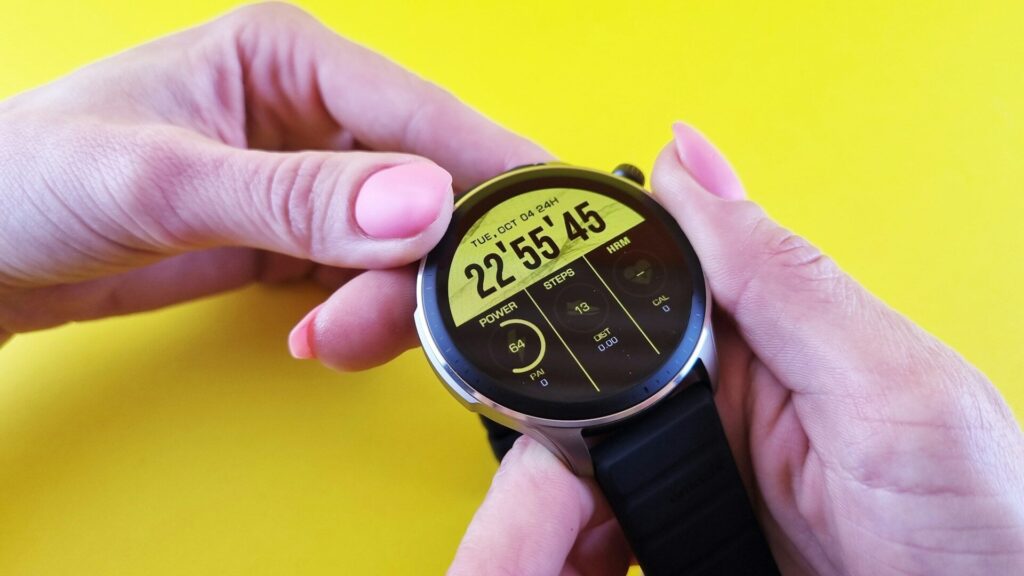
Amazfit watches are simple to wear but rely on one app, Zepp, for pairing, updates and data. Most missed notifications and stalled syncs trace back to permissions skipped during setup. A careful Amazfit watch setup avoids those problems from the start.
Before You Start
- Charge the watch to at least half.
- Install the Zepp app from the App Store or Play Store.
- Turn on Bluetooth and location on the phone.
- Do not pair the watch from the phone’s Bluetooth menu. Pair it only through Zepp.
Pairing Step by Step
- Open Zepp and create an account or sign in.
- Tap Add device and select Watch.
- Turn on the watch. It shows a QR code.
- Scan the QR code with the Zepp app.
- Confirm the pairing request on the watch and on the phone.
- Keep the watch near the phone while it installs any firmware update.
Permissions to Grant
The table below lists the permissions that matter most. Names vary slightly by phone.
| Permission | Phone | Why It Matters |
|---|---|---|
| Notification access | Android | Shows app alerts on the watch |
| Battery set to Unrestricted | Android | Keeps Zepp syncing in the background |
| Nearby devices and location | Android | Lets the app find and connect to the watch |
| Share system notifications | iPhone | Lets the watch show iPhone alerts |
| Background App Refresh | iPhone | Allows syncing without opening Zepp |
On iPhone, open Settings, then Bluetooth, tap the info button next to the watch and turn on Share System Notifications.
The First Sync and Profile
- Fill in your profile in Zepp: height, weight, birth year and sex.
- Choose which apps send notifications to the watch.
- Set your sleep tracking and heart rate options.
- Open Zepp and pull down on the home screen to finish the first sync.
Quick answer: pair only through Zepp, allow notification and background permissions, then fill in your profile before the first sync.
Connecting Other Apps
In Zepp, open your profile and look for linked or third-party accounts. You can connect Apple Health on iPhone, Health Connect on Android and services such as Strava. See our guides to Apple Health and Health Connect for how that data is shared.
Final Thoughts
A good Amazfit watch setup comes down to three things: pair through Zepp, grant the background and notification permissions, and complete your profile. With those in place, notifications arrive on time and data syncs without opening the app.
If pairing fails, our pairing fixes guide can help. See a current model in our Amazfit Balance 2 review.
FAQs
Do Amazfit watches work with iPhone?
Yes, Amazfit watches work with iPhone and Android. Quick replies to messages are available on Android only.
Why does my Amazfit not show notifications?
Notification permissions are usually missing. On iPhone, turn on Share System Notifications in Bluetooth settings.
Do I need a Zepp account?
Yes, Zepp needs an account to pair and store your data. It also backs up your history.
How long does the first sync take?
Usually a few minutes. A firmware update during setup can take longer, so keep both devices charged.


Write Your Review
No reviews yet. Be the first to share your experience!