

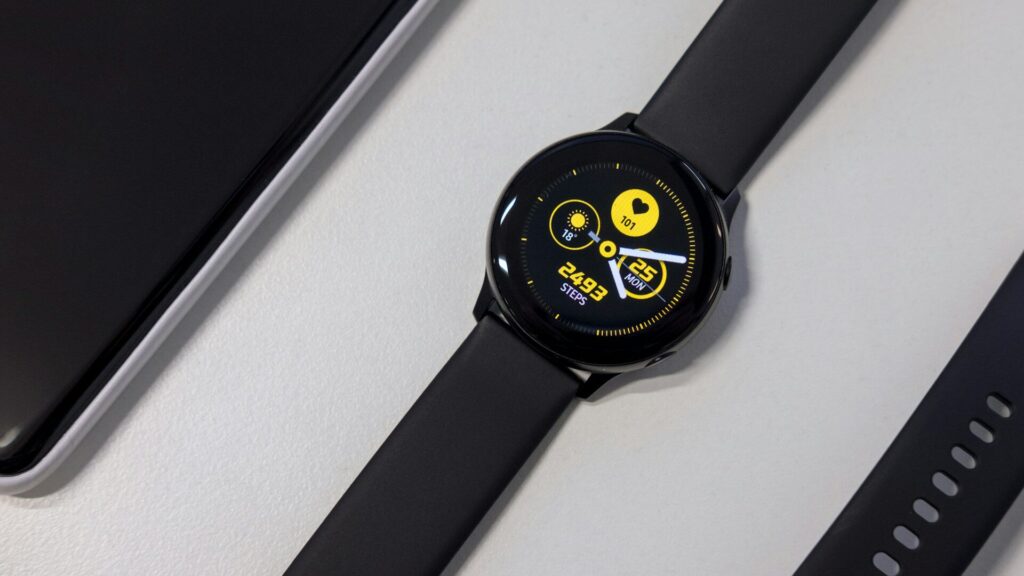
Notifications stop arriving, the watch shows a disconnected icon, and then it reconnects on its own an hour later. When a Galaxy Watch keeps disconnecting, the cause is usually on the phone: battery settings, outdated companion apps or a confused Bluetooth connection.
Work through these fixes in order.
Common Causes at a Glance
Match what you see with the most likely cause.
| Symptom | Likely Cause | Fix to Try |
|---|---|---|
| Drops after the phone sits idle | Battery optimization | Set companion apps to Unrestricted |
| Drops in certain rooms | Range or interference | Keep the phone closer |
| Started after an update | Outdated plugin | Update Galaxy Wearable and the plugin |
| Drops at random times | Bluetooth glitch | Restart both devices |
| Never stays connected | Corrupted pairing | Reset and re-pair |
Quick Fixes to Try First
- Restart the watch and the phone.
- Toggle Bluetooth off and on in the phone’s settings.
- Turn off Airplane Mode and power saving modes on both devices.
- Keep the phone within about 30 feet of the watch, without thick walls in between.
Stop the Phone From Closing Companion Apps
Android phones save battery by pausing apps in the background, which can cut the watch connection. Change these settings:
- Open Settings, then Apps, and find Galaxy Wearable, your watch plugin and Samsung Accessory Service.
- For each one, open Battery and choose Unrestricted.
- On Samsung phones, open Battery, then Background usage limits, and remove these apps from sleeping lists.
- On other Android phones, look for a similar battery optimization list and exclude the same apps.
Quick answer: setting Galaxy Wearable and its plugin to Unrestricted battery fixes most repeated disconnections.
Update Every Piece of Software
- Update your phone’s Android version.
- Update Galaxy Wearable, the watch plugin and Samsung Accessory Service from the Galaxy Store or Play Store.
- Update the watch software in Galaxy Wearable under Watch settings, then Watch software update.
Reset and Re-pair as a Last Resort
- Back up the watch in Galaxy Wearable under Watch settings, then Accounts and backup.
- Clear the cache of Galaxy Wearable in the phone’s app settings.
- Reset the watch from Settings, General, Reset.
- Pair again and restore the backup.
Our guide on how to set up a Galaxy Watch walks through pairing step by step, and our pairing fixes guide helps if it will not connect at all.
Final Thoughts
When a Galaxy Watch keeps disconnecting, start with a restart, then set the companion apps to Unrestricted battery and update everything. A reset and re-pair is rarely needed once the phone stops closing those apps in the background.
If you are shopping for a newer model, see our Galaxy Watch9 review and browse more troubleshooting guides.
FAQs
Why does my Galaxy Watch disconnect at night?
Battery saving on the phone often pauses Galaxy Wearable overnight. Set it and the watch plugin to Unrestricted battery.
Will resetting my Galaxy Watch delete data?
Yes, a reset erases the watch. Back it up in Galaxy Wearable first so you can restore settings and apps.
Does a Galaxy Watch work without the phone nearby?
Partly. It keeps tracking health and workouts, and LTE models can still get calls and messages.
Can Wi-Fi keep my watch connected?
Yes, many Galaxy Watch models can stay connected over Wi-Fi. Turn on Wi-Fi on the watch so it can sync when Bluetooth drops.


Write Your Review
No reviews yet. Be the first to share your experience!