

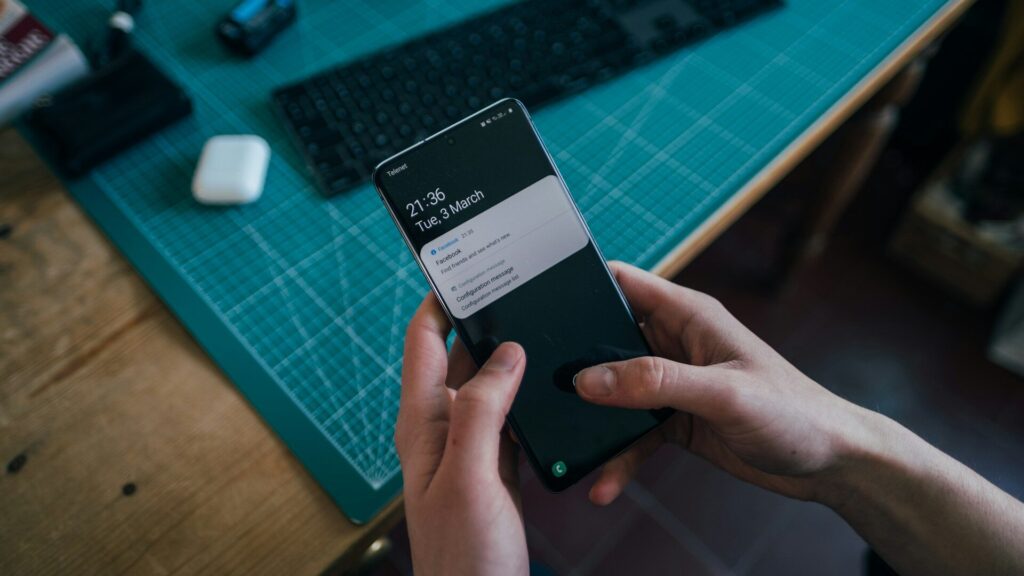
To keep smartwatch notifications under control, allow only a short list of apps to alert your wrist, turn off sounds and keep gentle haptics, use focus or do-not-disturb modes for work and sleep, and silence group chats and promotions. Most watches mirror the phone’s notification settings, so trimming notifications on the phone first and then choosing which apps reach the watch gives you the cleanest result.
Why Notification Overload Happens
By default, many watches pass along every alert your phone receives. That means every like, sale, news alert and group message buzzes your wrist. After a few days, people start ignoring the watch, and they miss the alerts that matter. Fewer notifications make the important ones stand out.
Decide What Deserves Your Wrist
| Keep on the Watch | Leave on the Phone |
|---|---|
| Calls from favorites | Social media likes and comments |
| Messages from family and close contacts | Shopping and promotions |
| Calendar reminders | News alerts |
| Rides, deliveries and two-factor codes | Busy group chats |
| Smart home doorbell and security | Game and app updates |
How to Trim Notifications
- Open your watch companion app and find the notifications section.
- Turn off mirroring for apps you never need on the wrist.
- Within messaging apps, mute busy group chats.
- Choose haptic-only alerts and turn off sounds.
- Turn on “show only when unlocked” or privacy options if you want message text hidden.
Each platform names these settings a little differently; our setup guides for Apple Watch, Galaxy Watch and Pixel Watch show where to find them.
Use Focus and Bedtime Modes
Focus or do-not-disturb modes silence everything except people and apps you allow. Set one for work hours, one for workouts and one for sleep. Many watches sync these modes from the phone automatically. A bedtime mode also darkens the screen and stops wrist-raise wakes at night, which helps sleep tracking. Battery improves too, since fewer alerts mean fewer screen wakes; see 10 smartwatch settings that improve battery life.
Quick Replies and Actions
For alerts you do keep, set up quick replies such as “On my way” or “Call you later” so you can respond in one tap. Many watches also let you archive, mark as read or snooze reminders straight from the notification. Fewer taps mean less time looking at your wrist and more time on what you were doing.
When Notifications Stop Arriving
If you trimmed too much or alerts stop entirely, check that the phone and watch are connected, battery saver modes are off and the companion app is allowed to run in the background. Our guides to pairing problems and Bluetooth disconnects cover fixes.
Final Thoughts
Start by trimming phone notifications, allow only a few apps on the watch, use focus modes for work and sleep, and keep quick replies ready. A quiet wrist makes the alerts that matter impossible to miss.
FAQs
How do I stop my smartwatch from buzzing for every message?
Turn off mirroring for noisy apps and mute group chats. Keep only favorites and key apps.
Can my watch follow my phone’s focus mode?
Many watches can sync focus or do-not-disturb modes. Check the companion app settings.
Why are notifications not showing on my watch?
Check the connection, battery saver and app permissions. Restarting both devices often helps.
Write Your Review
No reviews yet. Be the first to share your experience!