

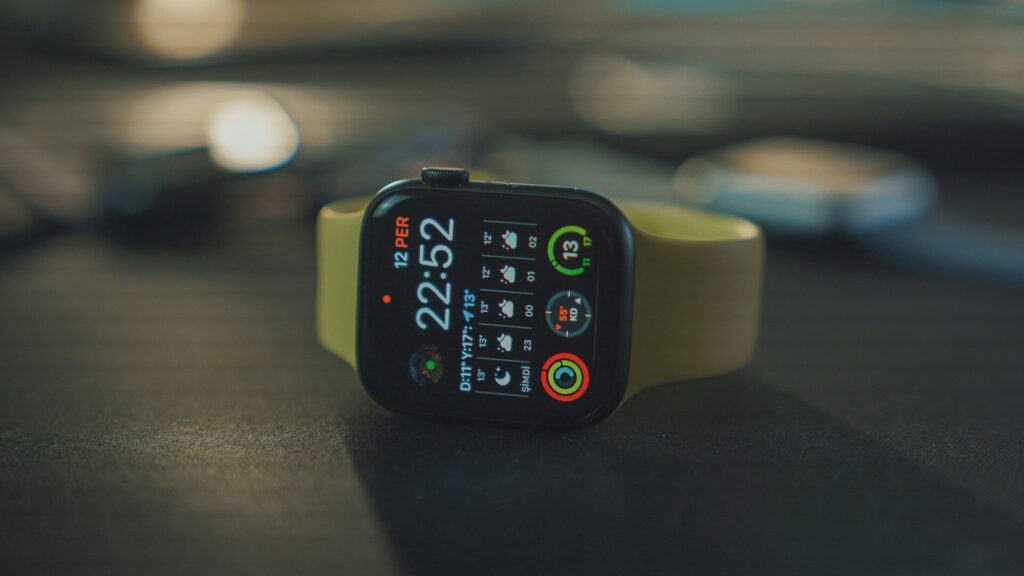
The watch face is the screen you see most, often dozens of times a day. Small data windows on it, called complications, can show weather, steps, heart rate or your next meeting. Setting them up well means fewer taps and quicker answers.
Plan Your Layout First
- List the three things you check most, such as time, next event and steps.
- Put the most important one in the largest or most central spot.
- Add one shortcut you use daily, such as a workout or timer.
- Leave the rest empty. A crowded face is harder to read.
Think about when you look at your watch. If it is mostly during meetings, discreet info like the next event matters most. If it is mostly during workouts, heart rate and a timer belong front and center. Your daily routine should shape the layout, not the number of slots available.
How to Edit by Platform
| Platform | On the Watch | In the Phone App |
|---|---|---|
| Apple Watch | Touch and hold the face, tap Edit, swipe to complications | Watch app, Face Gallery |
| Galaxy Watch | Touch and hold the face, tap Customize | Galaxy Wearable app, Watch faces |
| Pixel Watch | Touch and hold the face, tap Customize | Pixel Watch app, Watch faces |
| Garmin | Hold the menu button, open Watch Face, then Customize | Garmin Connect, or Connect IQ for more faces |
Quick answer: on most watches, touch and hold the current face to start editing.
New watch? Our setup guides for Apple Watch, Galaxy Watch, Pixel Watch and Garmin cover the basics first.
Useful Complications to Try
- Next calendar event: tells you when and where without opening an app.
- Weather or UV: helpful before a run or a walk.
- Activity progress: steps or rings to keep you moving.
- Battery level: a quick reminder to charge before bed.
- Workout shortcut: one tap to start your usual session.
Make a Few Faces for Different Moments
Most watches let you save several faces and swipe between them. A simple setup works well for most people:
- Work face: time, calendar and messages.
- Workout face: heart rate, timer and a workout shortcut.
- Night face: a dark, simple design with minimal data.
Seasonal faces can be fun too, like the ones in our Halloween watch face guide.
Some watches can switch faces automatically. Apple Watch can change faces with Focus modes, and other platforms offer similar options through routines or modes. Setting this up once means your work face appears in the morning and your night face appears at bedtime without a single tap.
Keep Battery in Mind
Faces with animations, bright colors and many live complications refresh more often and can shorten battery life. Dark backgrounds help on OLED screens. For more power-saving tips, see our list of smartwatch settings that improve battery life.
Final Thoughts
Pick your top three stats, place them where your eye lands first, and save a couple of faces for work, workouts and night. A few minutes of setup makes every glance faster.
FAQs
What is a complication on a watch face?
A small window that shows live info, such as weather, steps or your next event, right on the watch face.
Can I download more watch faces?
Yes on most platforms. Galaxy Watch and Pixel Watch use the Play Store, and Garmin uses Connect IQ. Apple Watch offers faces from Apple and complications from apps.
Do watch faces affect battery life?
Yes. Animated faces with many live complications use more power than simple, dark designs.
Why is a complication showing old data?
The app behind it has not refreshed yet. Open the app once on the watch, and check that it is allowed to refresh in the background.



Write Your Review
No reviews yet. Be the first to share your experience!