

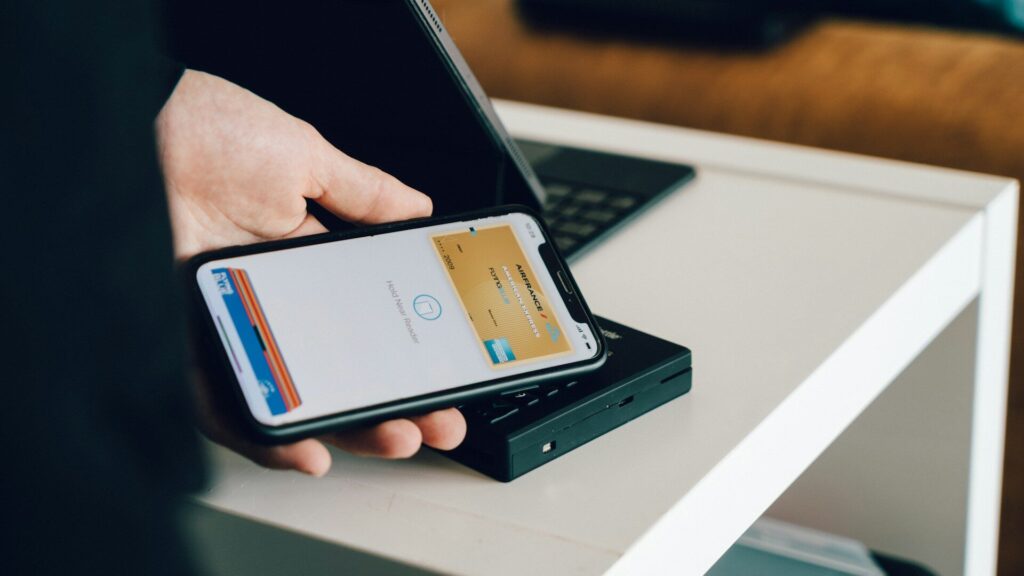
Leaving your phone at home for a run or a quick coffee is easier when your watch can pay. Contactless payments use the NFC chip in your watch, the same tap-to-pay system as a contactless card. Setup takes a few minutes, and the steps are similar across brands.
Before You Start
- Check support: your watch needs NFC, and your bank or card issuer must support the wallet you plan to use.
- Set a screen lock: every wallet requires a PIN or passcode on the watch, so it locks when you take it off.
- Update everything: install the latest watch software and companion app first.
- Keep your card nearby: you may need to scan it or confirm with your bank by text or app.
Which Wallet Your Watch Uses
| Watch | Wallet | Where You Add a Card |
|---|---|---|
| Apple Watch | Apple Pay | Watch app on iPhone, Wallet and Apple Pay |
| Galaxy Watch | Samsung Wallet or Google Wallet | Galaxy Wearable app or the wallet app |
| Pixel Watch | Google Wallet | Google Wallet on the watch, confirmed on your phone |
| Garmin | Garmin Pay | Garmin Connect app, Garmin Pay section |
| Fitbit (recent models) | Google Wallet | Fitbit or Google Wallet app |
Step-by-step Setup
- Set a PIN or passcode on the watch if you have not already.
- Open the companion app or wallet app listed above.
- Choose to add a card and follow the prompts to scan or enter it.
- Verify with your bank. This is often a code by text or a tap in the bank’s app.
- Set the card as default if you add more than one.
New to your watch? Our setup guides for Apple Watch and Galaxy Watch cover the basics first.
How to Pay at the Register
Open the wallet with the shortcut for your watch. On Apple Watch, double-press the side button. On Galaxy and Pixel watches, you usually press and hold a button or set a shortcut in settings. On Garmin, open the controls menu and choose the wallet, then enter your passcode if asked. Hold the watch face near the reader until it confirms.
If the reader does not respond, move the watch a little closer and hold it still for a second or two. At transit gates and some fuel pumps, the reader can be slower than a shop terminal. When a payment fails, the cashier can simply run it again, and your bank will not charge you twice for a declined tap.
Keeping Payments Secure
Wallets do not share your actual card number with the store. They use a stand-in number for each card. Your watch also locks itself when you take it off, so a lost watch cannot be used without the PIN. If you do lose it, remove the cards from your phone app or account right away. Our article on watchOS vs Wear OS explains how each platform handles security day to day.
Final Thoughts
Turn on a screen lock, add your card in the right app, verify with your bank and you are ready to pay from your wrist. Practice once at home by opening the wallet so the shortcut feels natural at the register. For more setup help, see our setup and tips guides.
FAQs
Do I need my phone nearby to pay with my watch?
No. Once a card is added, the watch pays on its own over NFC, even when your phone is at home.
Why will my bank card not add to my watch?
Your bank may not support that wallet yet. Check the wallet’s list of supported banks or ask your card issuer.
Is paying with a smartwatch safe?
Yes, it is at least as safe as a contactless card. The watch uses a stand-in card number and locks itself when removed from your wrist.

Write Your Review
No reviews yet. Be the first to share your experience!