

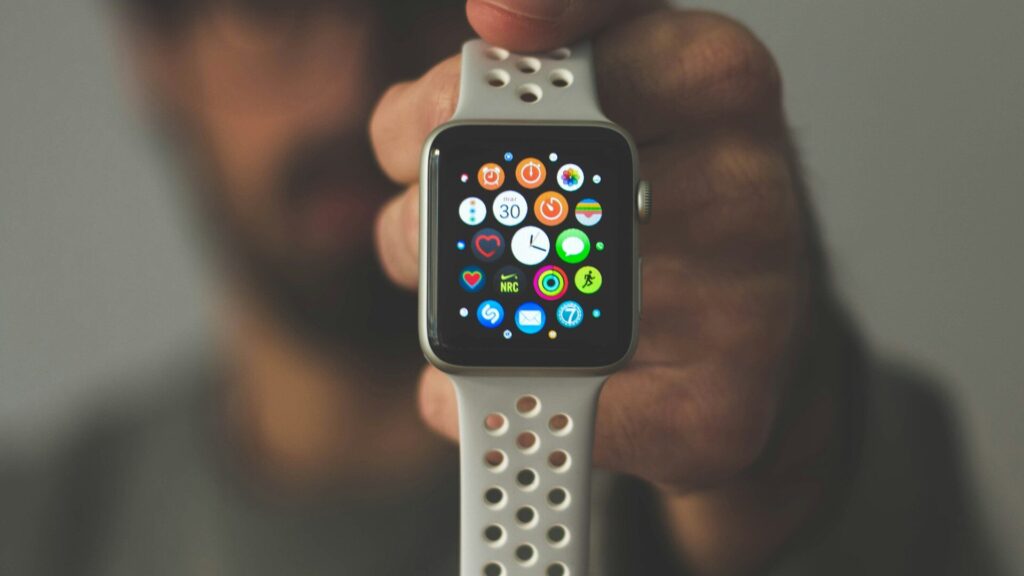
Most smartwatches ship with settings tuned for features, not endurance. A few changes can noticeably improve smartwatch battery life without giving up what you actually use. Names differ by brand, but every major platform has a version of these options.
The 10 Settings to Change
- Turn off always-on display. The screen is the biggest power draw on most watches. Raise-to-wake still shows the time when you look.
- Lower screen brightness. Use auto brightness, or set a lower fixed level indoors.
- Shorten screen timeout. A screen that turns off after a few seconds saves power all day.
- Cut notifications. Allow only the apps you truly need on your wrist. Every buzz wakes the screen and the vibration motor.
- Turn off tilt-to-wake if you do not need it. It can light the screen by accident while you type or drive.
- Use a simpler watch face. Faces with animations and many live complications refresh more often.
- Choose standard GPS for everyday runs. Multi-band or all-systems modes are more precise but use more power, as explained in our dual-band GPS guide.
- Reduce background sensor checks. Set blood oxygen or continuous stress checks to sleep only, or on demand.
- Turn off the voice assistant wake word. Listening for a hot word keeps the microphone active.
- Turn off LTE when your phone is nearby. A weak cellular signal drains a cellular watch quickly. Our GPS vs LTE guide explains why.
Which Settings Help the Most
| Setting | Typical Impact | What You Give Up |
|---|---|---|
| Always-on display off | High | Time is not visible without a wrist raise |
| Fewer notifications | Medium to high | Some alerts stay on your phone |
| Standard GPS mode | High during workouts | Slightly less route detail in cities and forests |
| Background sensor checks reduced | Medium | Fewer daytime readings |
| Lower brightness | Medium | Harder to read in bright sun |
| Simpler watch face | Low to medium | Fewer live details at a glance |
Quick answer: if you only change one thing, turn off always-on display. Then trim notifications.
Where to Find These Settings
- Apple Watch: Settings app on the watch, or the Watch app on iPhone. See our Apple Watch setup guide.
- Galaxy Watch: watch Settings or the Galaxy Wearable app. Our Galaxy Watch setup guide walks through it.
- Garmin: watch settings and Garmin Connect, covered in our Garmin first-day setup.
- Pixel Watch: the Pixel Watch app. Our Pixel Watch battery guide lists model-specific tips.
Use Battery Saver Modes Wisely
Most watches have a low-power or battery saver mode that switches off many features at once. It is useful on travel days or when you forgot to charge, but it can pause notifications and sensors. Turn it on when you need it rather than leaving it on all the time.
Some watches also let you schedule modes. A bedtime mode that dims the screen and silences alerts overnight saves power while you sleep, and it keeps sleep tracking running. Pair it with a quick charge in the morning, such as during a shower, and many people never see a low battery warning.
Finally, keep the software up to date. Updates often include battery fixes, and an old version with a known drain issue can undo every setting on this list.
Final Thoughts
Start with the screen, then notifications, then GPS and sensors. Change one or two settings at a time, wear the watch for a couple of days, and keep the changes that give you more battery without losing features you care about.
FAQs
Does always-on display drain the battery?
Yes, more than any other setting on most watches. Turning it off is the fastest way to add hours between charges.
Will turning off notifications affect health tracking?
No. Notifications and health sensors are separate, so steps, heart rate and sleep keep recording.
Why does my watch battery drain faster during runs?
GPS, the heart rate sensor and a brighter screen all run at once. Using standard GPS mode helps the most.
Do third-party apps drain smartwatch batteries?
Some do. Apps that refresh often or use location in the background can drain power, so remove the ones you rarely open.


Write Your Review
No reviews yet. Be the first to share your experience!