

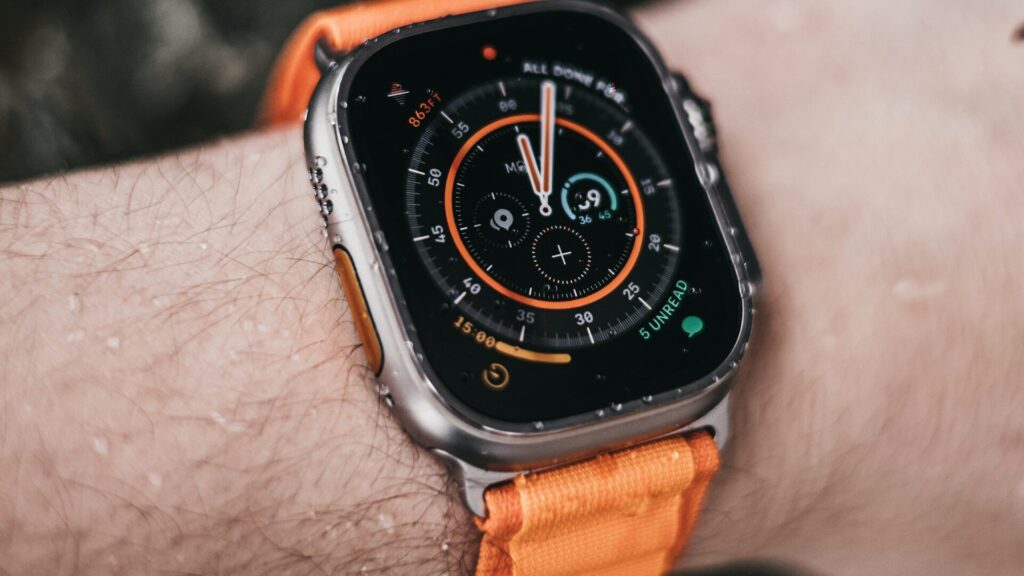
Changing your watch face is the quickest way to get your wrist into the Halloween spirit. A pumpkin photo, an orange and black color scheme or a store face with bats and ghosts all work. How you set a Halloween watch face depends on your watch, since Apple and Wear OS handle faces differently. Here is the method for each.
Apple Watch: Photos and Colors
Apple Watch does not allow third-party watch faces, so the best Halloween look comes from your own photos and Apple’s color options.
- On your iPhone, create a Photos album with a few Halloween pictures.
- Open the Watch app and go to the Face Gallery.
- Choose the Photos face and select your Halloween album.
- Tap Add, and the face appears on your watch.
For a simpler look, pick a face like Modular or Infograph and switch its color to orange. If you are new to the watch, our Apple Watch setup guide covers the Watch app basics.
Galaxy Watch: Store Faces and Photos
Galaxy Watch runs Wear OS, which supports watch faces from the Google Play Store.
- Open the Galaxy Wearable app on your phone.
- Tap Watch faces, then browse or open the Play Store for more.
- Search for Halloween faces and install one you like.
- Select it in Galaxy Wearable to apply it.
The built-in photo face also works with your own Halloween pictures. Our Galaxy Watch setup guide explains the app if you need a refresher.
Pixel Watch: Pixel Watch App and Play Store
- Open the Google Pixel Watch app on your phone.
- Tap Watch faces and choose Add new.
- Pick the photo face or install a Halloween face from the Play Store.
- Customize colors and complications, then tap Add.
See our Pixel Watch setup guide for more on the companion app.
Watch Face Options at a Glance
| Watch | Third-party Faces | Photo Face | Where to Change |
|---|---|---|---|
| Apple Watch | No | Yes | Watch app on iPhone |
| Galaxy Watch | Yes, Play Store | Yes | Galaxy Wearable app |
| Pixel Watch | Yes, Play Store | Yes | Pixel Watch app |
The difference comes from the two platforms, explained in our watchOS vs Wear OS guide.
Keep the Battery in Check
Animated and very bright faces use more power, especially with always-on display. A few habits help:
- Prefer dark backgrounds on OLED screens, since black pixels use little power.
- Skip faces with constant animation or second-by-second updates.
- Read reviews for battery complaints before installing a store face.
If your Pixel Watch drains faster after a new face, our Pixel Watch battery guide shows how to find the cause.
Final Thoughts
A Halloween watch face takes a few minutes to set up. Apple Watch owners can use the Photos face and orange color options, while Galaxy Watch and Pixel Watch owners can also install store faces. Pick a dark, simple design to protect battery life, then switch back on November 1. More seasonal reads are in our Halloween guides.
FAQs
Can I download Halloween faces for Apple Watch?
No, Apple does not allow third-party faces. Use the Photos face with your own Halloween pictures instead.
Are Play Store watch faces safe?
Generally yes, from well-reviewed developers. Check reviews and requested permissions before installing.
Do animated faces drain the battery?
Yes, more than static faces. Dark, simple faces use the least power.
How do I switch back after Halloween?
Swipe or press on the face to pick a saved one. Your previous faces stay saved in the companion app.


Write Your Review
No reviews yet. Be the first to share your experience!